The latest version can be downloaded from https://biexcellence.com.
The installation files should always be stored locally on the server. Execute the following steps for the installation.
The open bi server includes a trial license. To use your own license file see License.
Windows
- Start the
OpenBiRepositoryServerInstaller.exe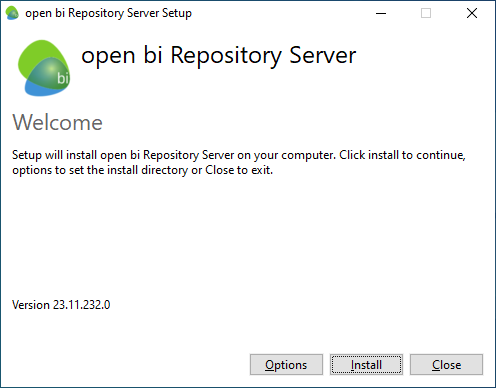
- Click on
Optionsto configure the installation location. The default location isC:\OPENBI.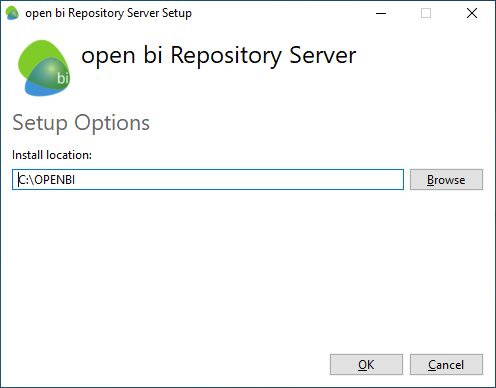
- Click on
Installto start the installation.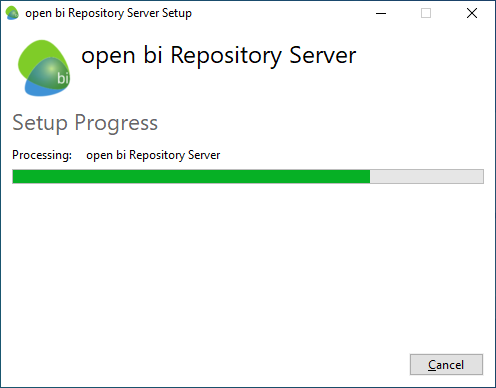
The installer also installs Microsoft SQL Server LocalDB and .NET Hosting Bundle automatically if they do not already exist.
The installer creates a Windows Service entry named open bi Repository Server (OpenBIServer). The startup type is set to Manual by default and it is recommended to change it to Automatic or Automatic (Delayed Start).
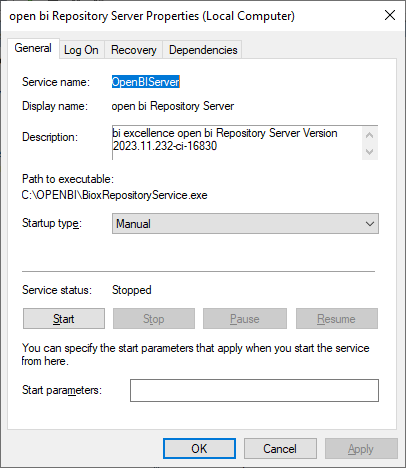
The service runs as the Local System user by default. A dedicated user can be used instead, but it requires local administrator permissions to access the files which were installed during the installation.
To reduce the downtime of the open bi server after a crash the service recovery options for First failure, Second failure and Subsequent failures can be set to Restart the Service.
Start
There are two ways to start the open bi server:
- Start the Windows Service, which is the recommended way.
- Run
OPENBI\ibssolution.bioxRepository.exeas administrator. This is useful to debug any startup errors.
These don't work at the same time, make sure to stop the Windows Service or Console before starting the server the other way.
Firewall
Make sure to open the desired ports in the Windows Firewall so the open bi server can be accessed from outside as well.
For security reasons the access to the config port (9093 by default) should be limited to the hosts which run the Configurator.
HTTPS
The open bi server requires a PKCS#12/PFX certificate (.p12 or .pfx) which contains the private key, any intermediate certificates and Server Authentication (OID 1.3.6.1.5.5.7.3.1). Without a valid certificate the HTTPS port is not opened.
The certificate is configured through the SSLPath and SSLPassword server settings. SSLPath accepts either:
- The path to the certificate file, either absolute or relative to the open bi server installation location. Use
SSLPasswordfor the password of the file. - The Common Name (CN), friendly name or thumbprint of a certificate which is installed in the
Local Machine→Personalcertificate store on Windows (on Linux theRootstore is used).SSLPasswordis not needed in this case. When multiple certificates match, the one with the latest expiration date is used.
A restart of the open bi server is required after changing these settings.
Existing certificates can be converted to PKCS#12/PFX with OpenSSL.
PEM:
$ openssl pkcs12 -export -inkey privateKey.key -in certificate.crt -certfile CAcert.crt -out certificate.pfx
P7B:
$ openssl pkcs7 -print_certs -in certificate.p7b -out certificate.cer
$ openssl pkcs12 -export -inkey privateKey.key -in certificate.cer -certfile CAcert.cer -out certificate.pfx
When the certificate is used from the Windows certificate store the user which runs the open bi server service needs read access to its private key, see FAQ.
Update
After updating the open bi server it is necessary to check the Windows Service entry again, e.g. the startup type would be reset to Manual and the logon information might have been reset.
Linux
- Install Microsoft SQL Server if an existing one is not available.
- Create a database.
sqlcmd -S localhost -U sa -P 'XXX' -C
CREATE DATABASE [openbi]
GO
- Extract open bi server and make sure
ibssolution.bioxRepositoryis executable.
chmod +x ibssolution.bioxRepository
- Add
CONNECTION_STRINGparameter to theConfiguration.xmlfile.
<Parameter>
  <Name>CONNECTION_STRING</Name>
  <Value>Server=(local);UID=sa;PWD=XXX;Database=openbi;TrustServerCertificate=True;</Value>
</Parameter>
Start
Run ./ibssolution.bioxRepository to start the open bi server.